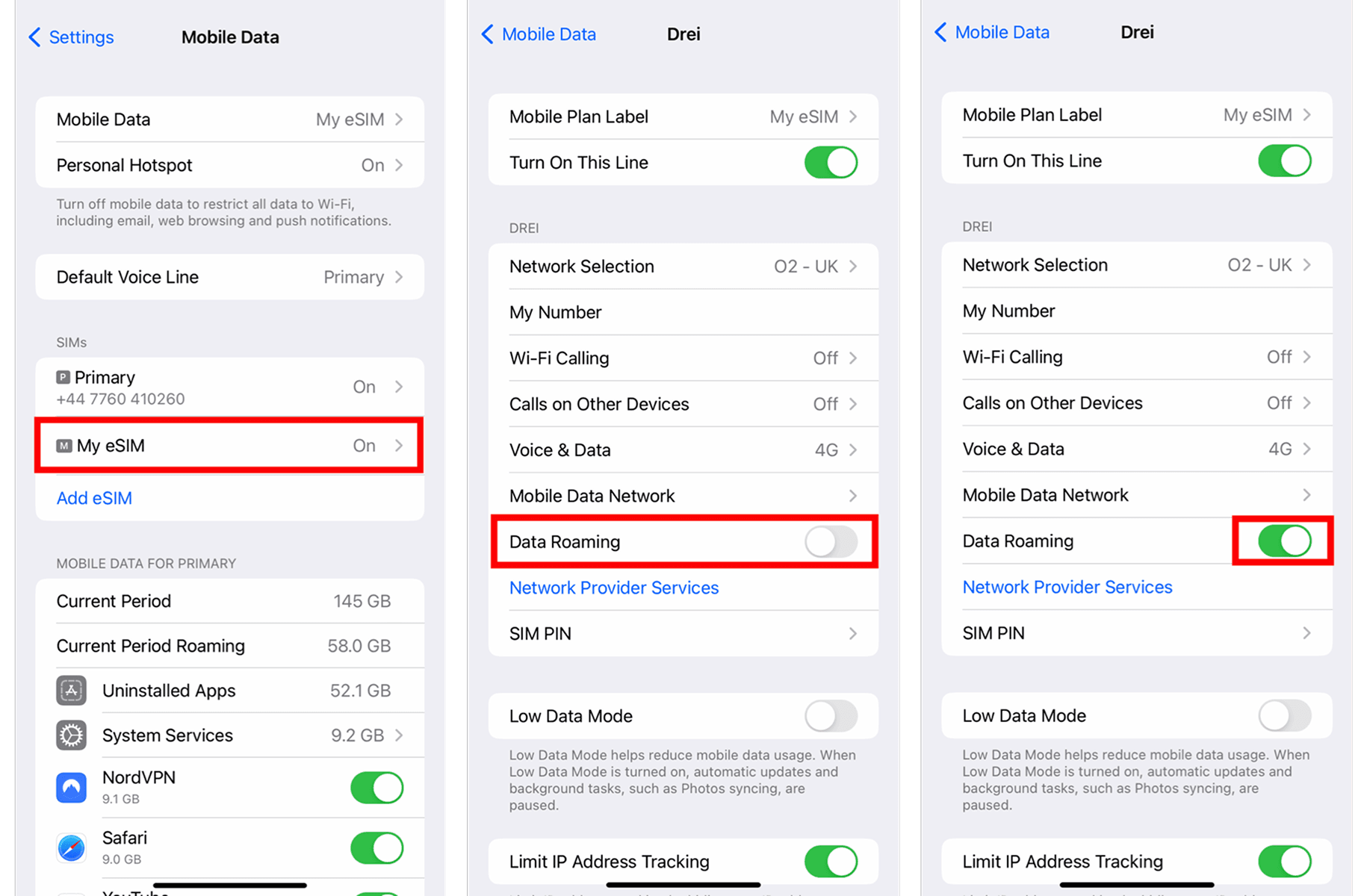

eSIM setup guide
Detailed Instructions on "How to install an eSIM?"
Follow the full iPhone and Android setup flow, including QR installation, manual iOS setup, and a compatible-devices checklist.
This help guide walks you through the steps required to install an eSIM on an Apple device. The guide was created using the most recent version of Apple software available at the time, iOS 18.3.
There are two install options offered in this help guide, either "Install using a QR code" or "manual install".
Before starting the install, it is important you have the following three components:
- A strong internet connection - ideally using a Wi-Fi network
- An eSIM compatible device - if unsure, a list of compatible devices is provided .
- The device is not locked to one particular network.
Install using a QR code
Step 1
eSIM
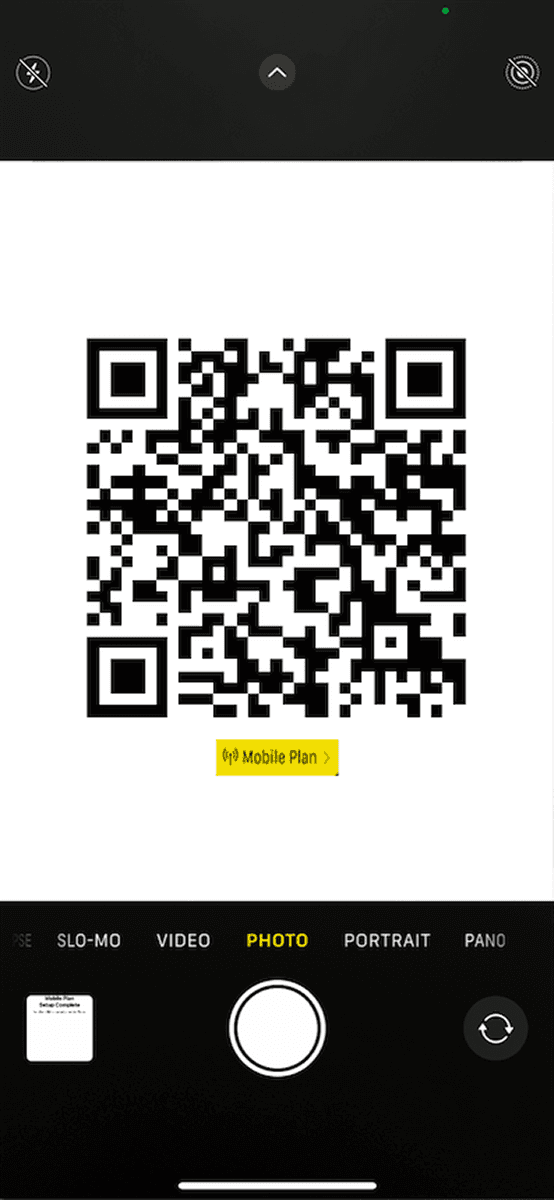
1.1 Open the camera on your device > Scan the QR code > Tap "Mobile Plan"
Or
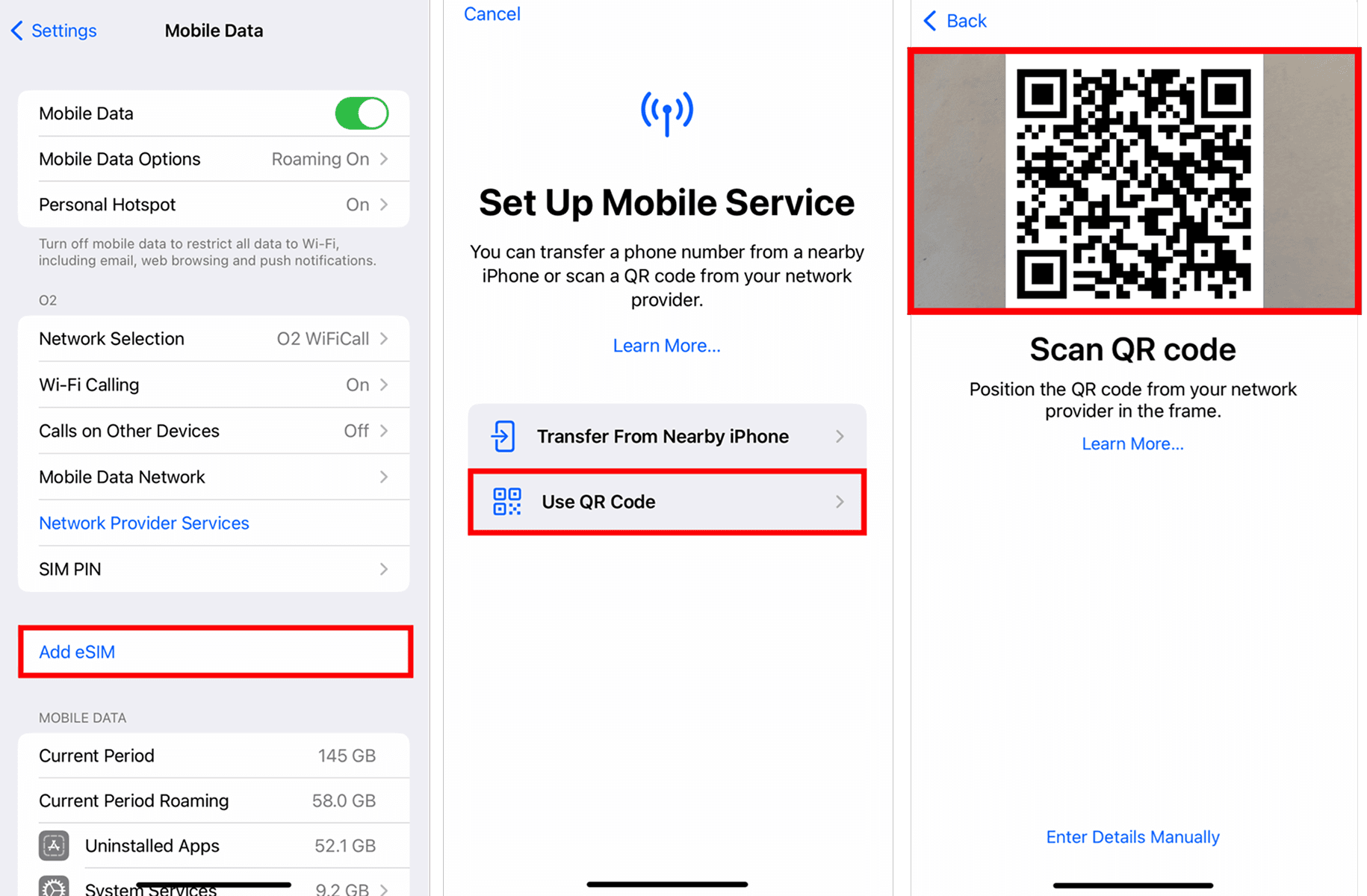
1.2 Go to "Settings" > Tap "Mobile / Cellular Data" > Tap "Add eSIM" > Tap "Use QR Code" > Scan the QR code provided
Step 2
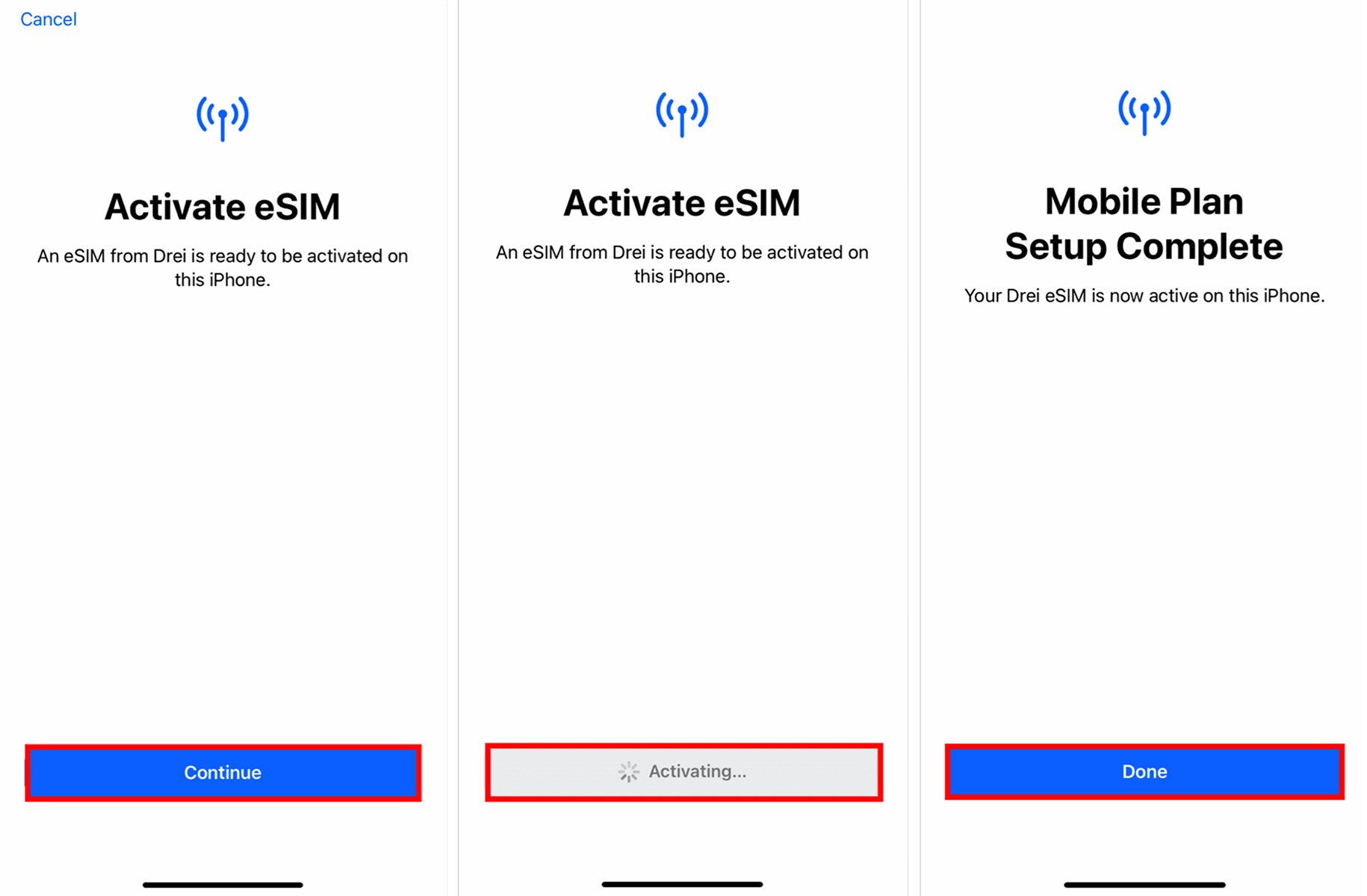
Tap "Continue" > Allow up to 10 minutes for the eSIM to activate > Tap "Done"
Step 3
There are two options available at this stage, we advise proceeding with option 1.0:
Either:
1.0 Tap "Continue" and then move to Step 4.
Or
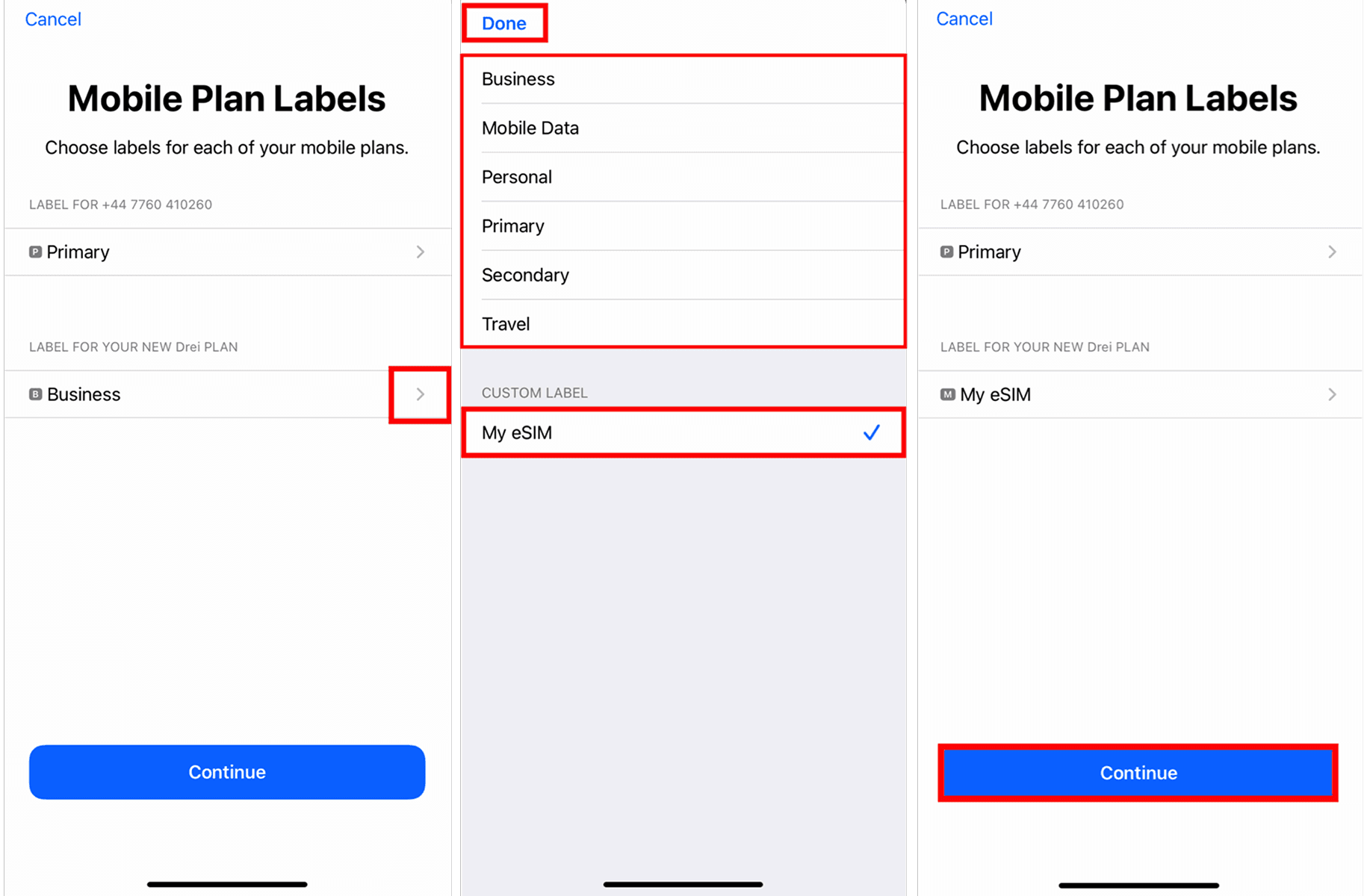
2.0 You have the option to modify the "eSIM Label" (the name of the eSIM) instead of using the default name.
If you would like to modify the eSIM label before moving to the next step: Tap ">" (the right hand arrow) > Then either choose one of the preset labels or type the name you want to use in the "Custom Label" text > Tap "Done"
In this example the name of the eSIM was changed to "My eSIM" using the custom label box.
Please note: Option 2.0 will not be offered to you if you have more than one eSIM already installed on your device, so a custom label can only be altered after the eSIM install is complete.
Step 4
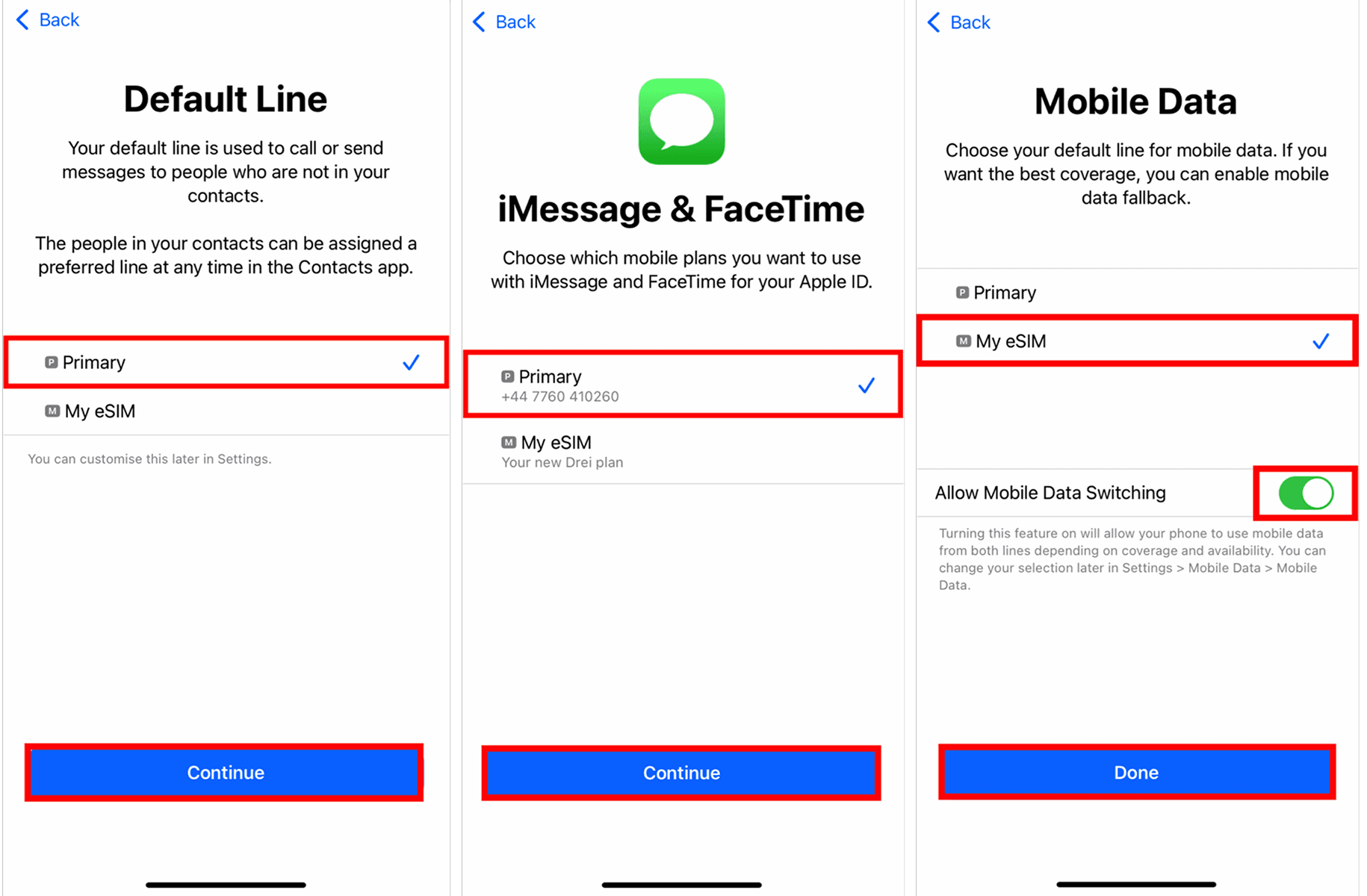
Configure the following settings as suggested:
- Set Default Line to "Primary" > Tap "Continue"
- Set Messages & FaceTime to "Primary" > Tap "Continue"
- Set Mobile Data to your preferred data choice, in this example "My eSIM"
Allow Mobile Data Switching is defaulted to off, choose your preference using the toggle > Tap "Done"
"Allow Mobile Data Switching" will allow your device to use mobile data from both lines depending on coverage and availability. You can change your selection at any time.
Step 5
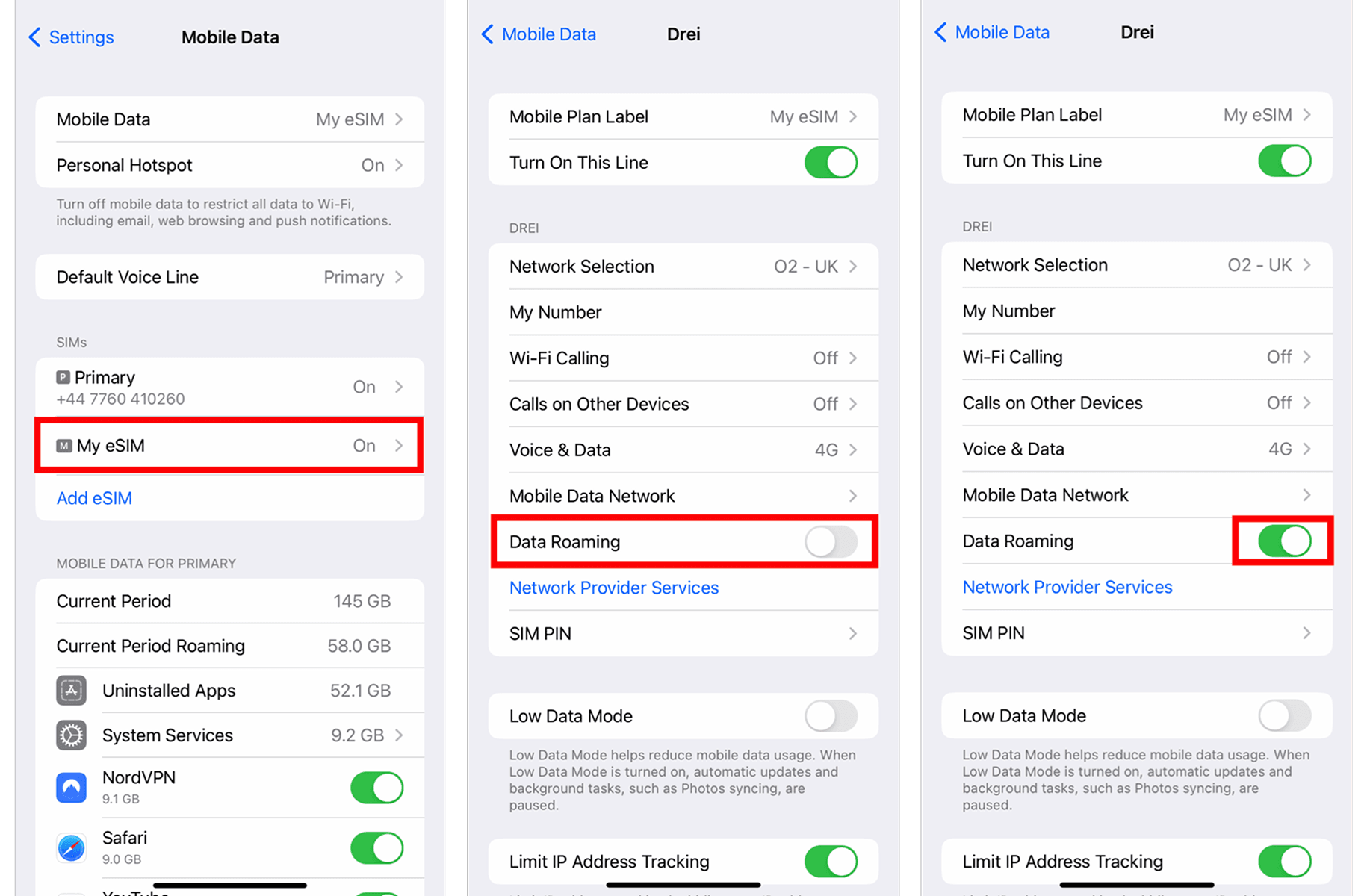
The eSIM is now installed and configured.
Go to "Settings" > Tap "Mobile / Cellular Data" > Select desired SIM > Move the toggle switch for "5G"
Manual Installation
Step 1
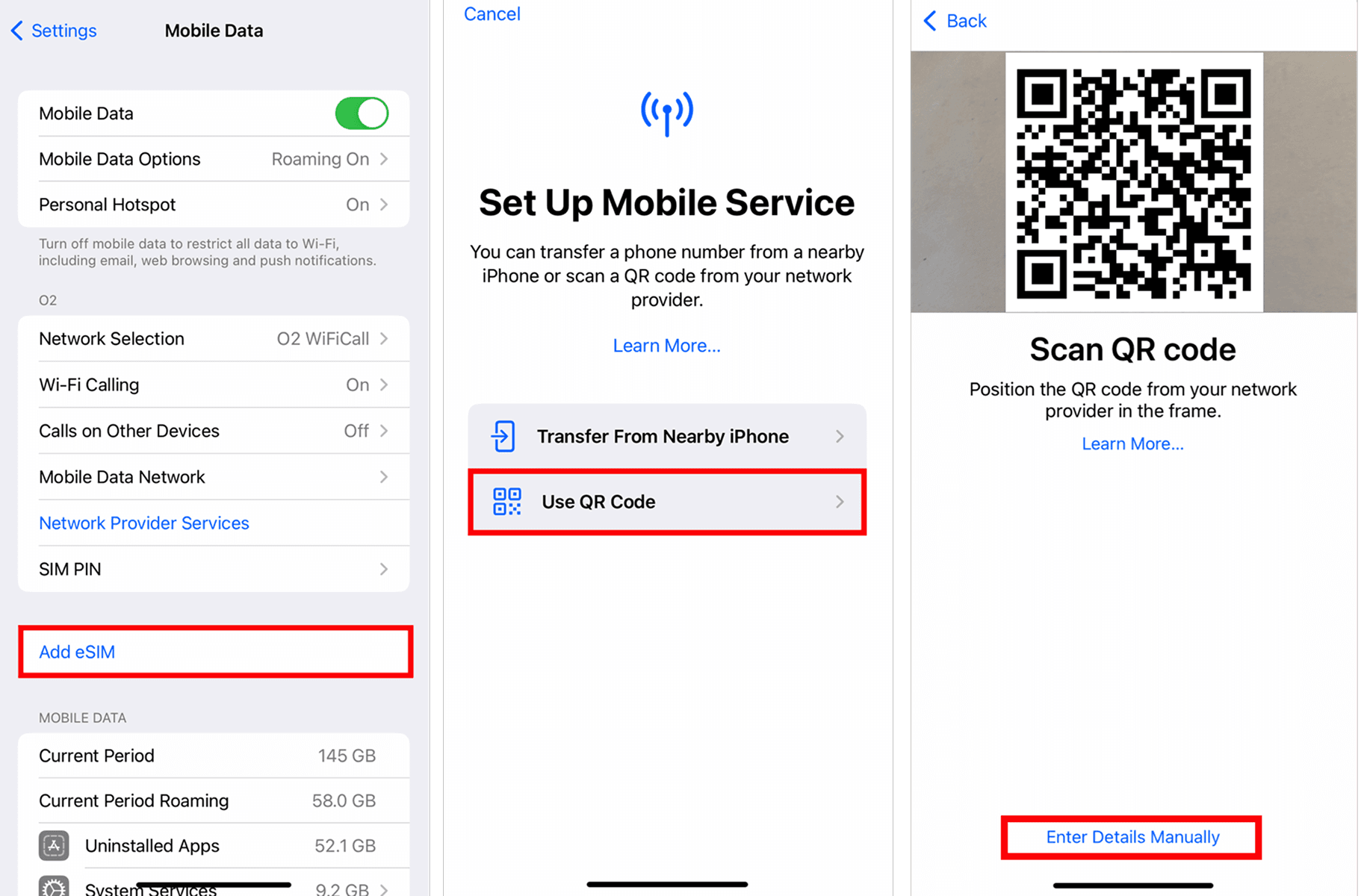
Go to "Settings" > Tap "Mobile / Cellular Data"
Step 2
Tap "Add eSIM" > Tap "Use QR Code" > Tap "Enter Details Manually"
Step 3
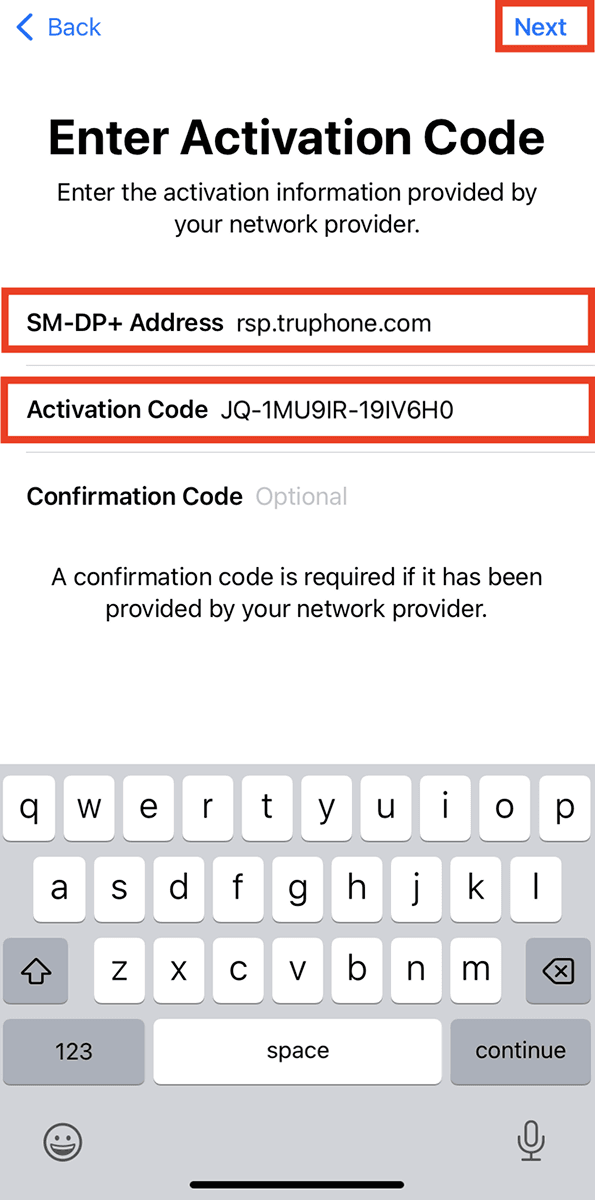
Enter the "SMDP Address" and the "Activation Code" provided > Tap "Next" and leave "Confirmation Code" blank.
Step 4
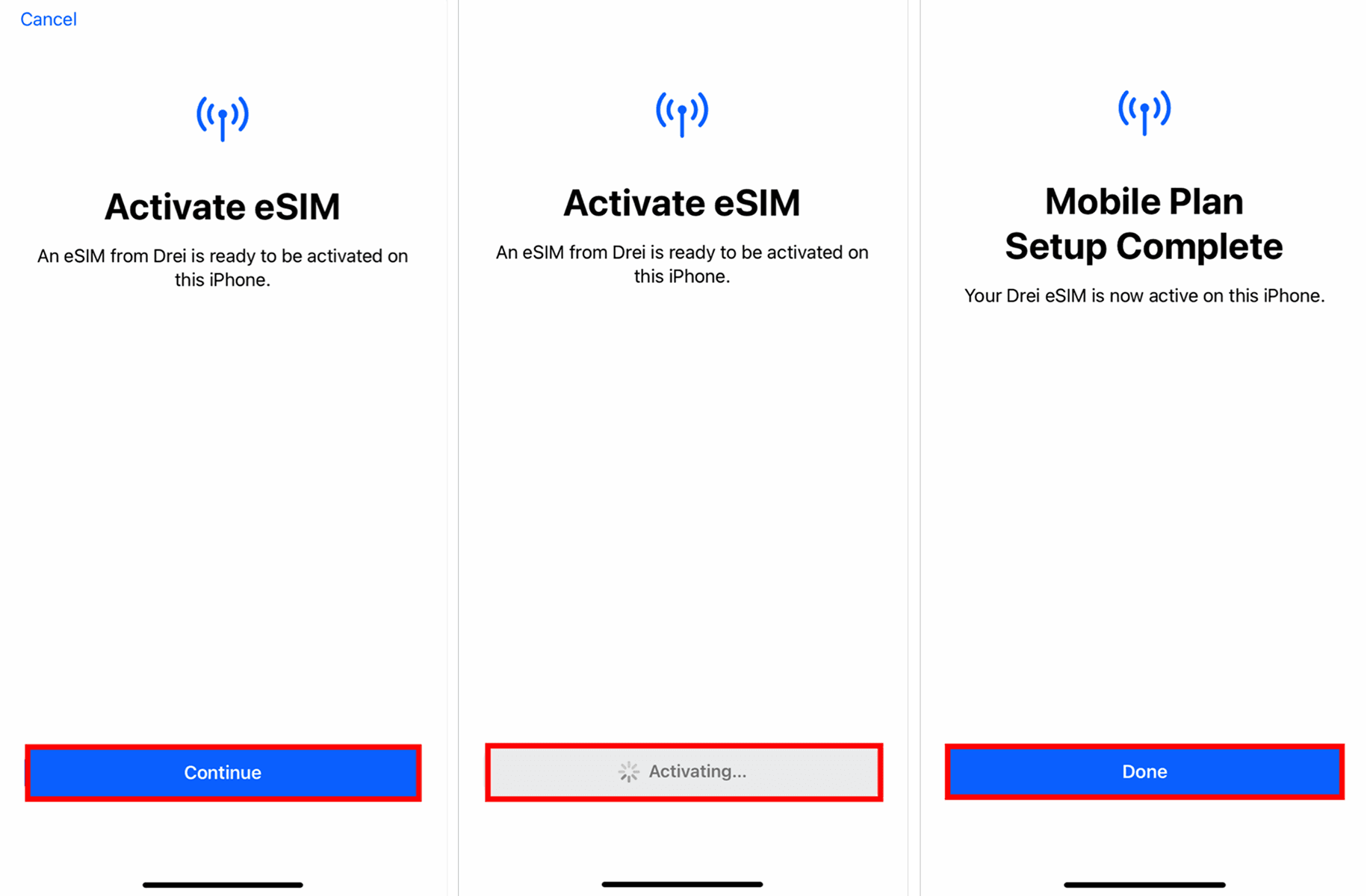
Tap "Continue" > Allow up to 10 minutes for the eSIM to activate > Tap "Done"
Step 5
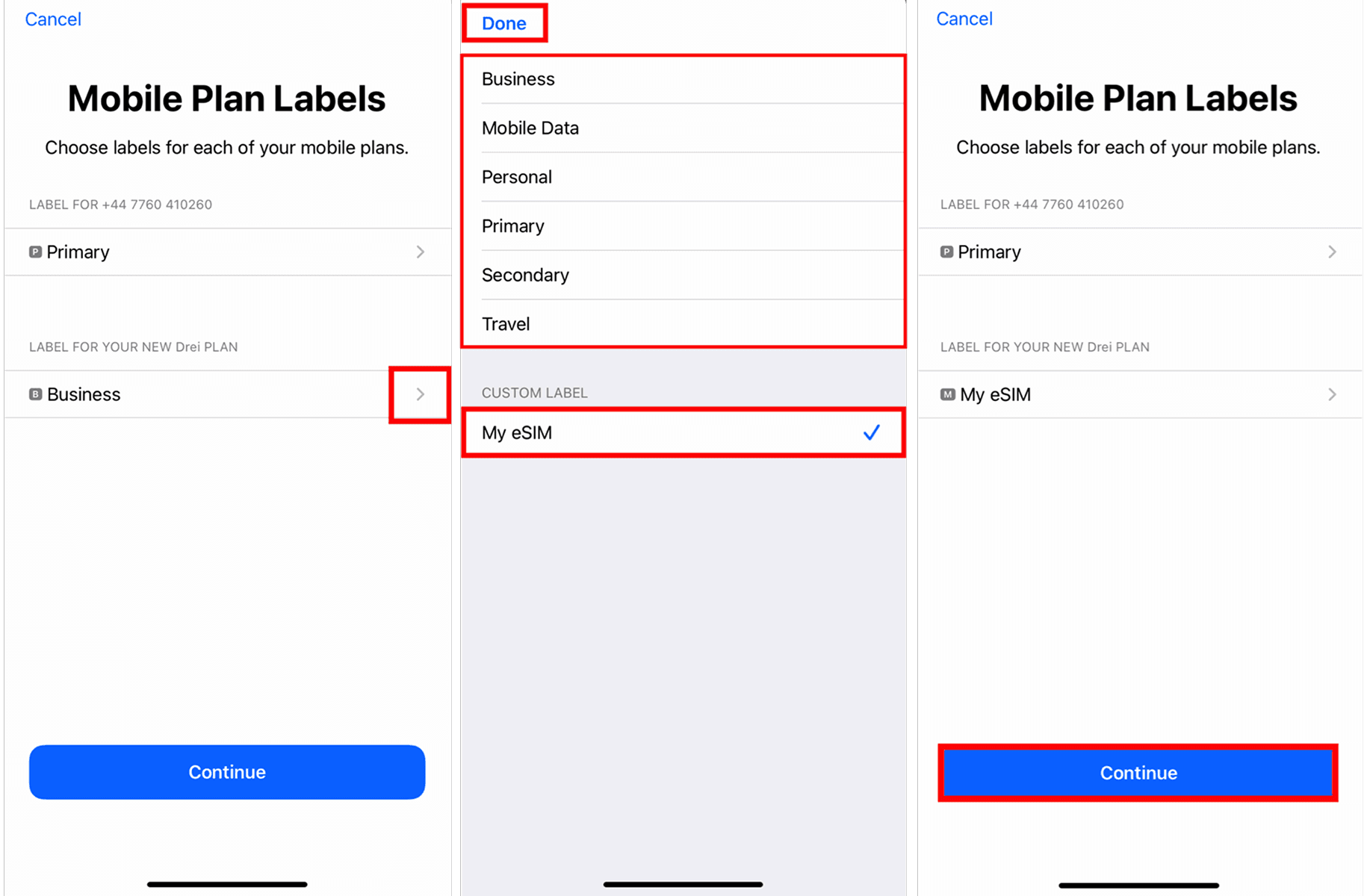
There are two options available at this stage, we advise proceeding with option 5.1)
Either
5.1) Tap "Continue" and then move to Step 6.
Or
5.2) You have the option to modify the "eSIM Label" (the name of the eSIM) instead of using the default name.
If you would like to modify the eSIM label before moving to the next step: Tap ">" (the right hand arrow) > Then either choose one of the preset labels or type the name you want to use in the "Custom Label" box > Tap "Done" > Tap "Continue"
In this example the name of the eSIM was changed to "My eSIM" using the custom label box.
Please note: Option 5.2) will not be offered to you if you have more than one eSIM already installed on your device, so a custom label can only be altered after the SIM install is complete.
Step 6
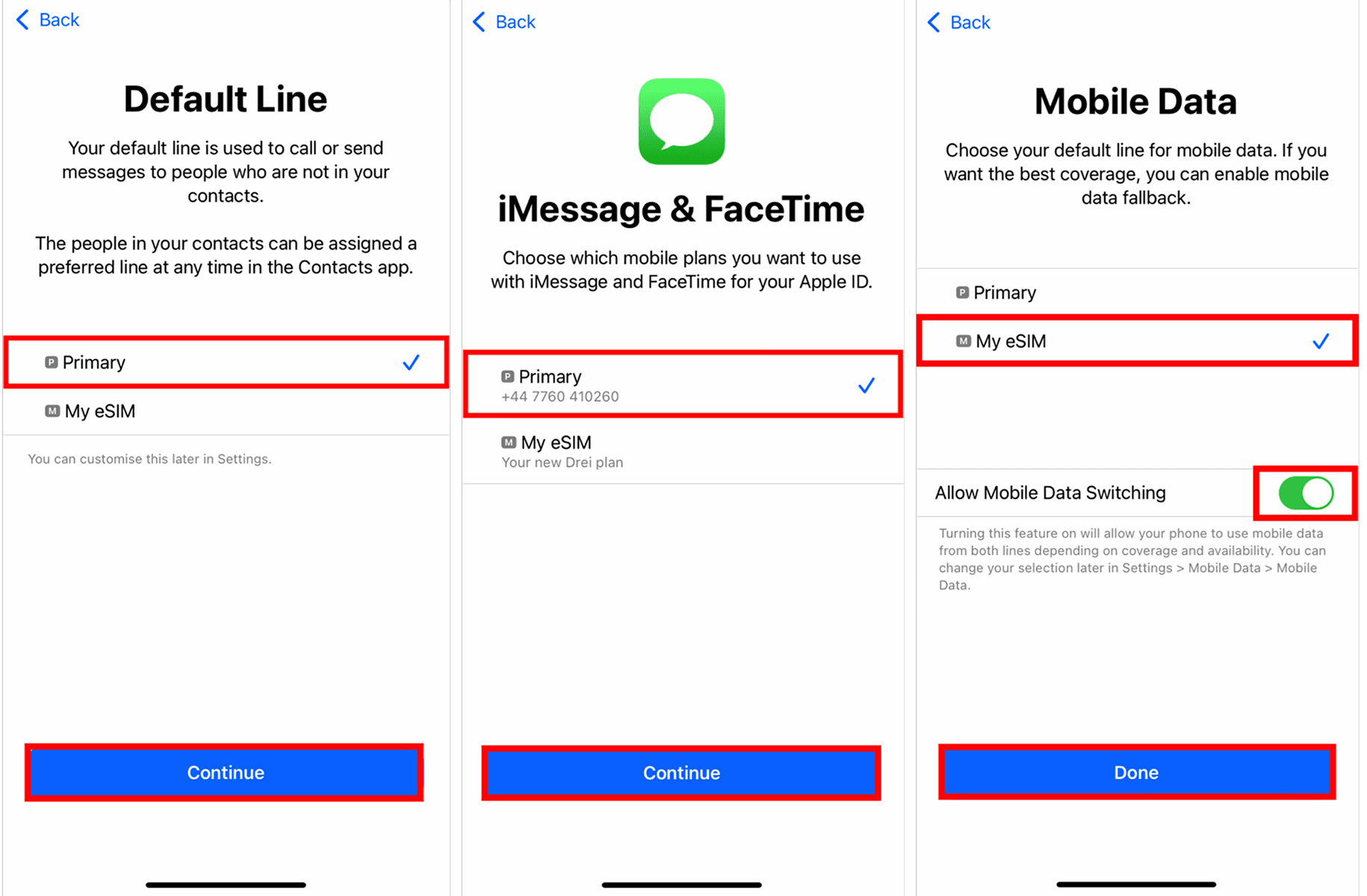
Configure the following settings as suggested:
- Set Default Line to "Primary" > Tap "Continue"
- Set iMessage & FaceTime to "Primary" > Tap "Continue"
- Set Mobile Data to your previously chosen eSIM label, in this example "My eSIM"
Allow Mobile Data Switching is defaulted to off, choose your preference using the toggle > Tap "Done"
"Allow Mobile Data Switching" will allow your device to use mobile data from both lines depending on coverage and availability. You can change your selection later in settings.
Step 7
The eSIM is now installed and configured.
Go to "Settings" > Tap "Mobile / Cellular Data" > Select desired SIM > Move the toggle switch to "On"